Works Supervisor
Works Supervisor accounts are for people who perform the same day-to-day tasks as Operators (completing Daily Driver pre-starts, recording plant hours, and reporting faults), but who require additional permissions within the booking calendar. The main distinction from the Operator account type is the ability to be granted elevated access in FLEET Booking, such as the ability to manage bookings on behalf of others.
Homepage
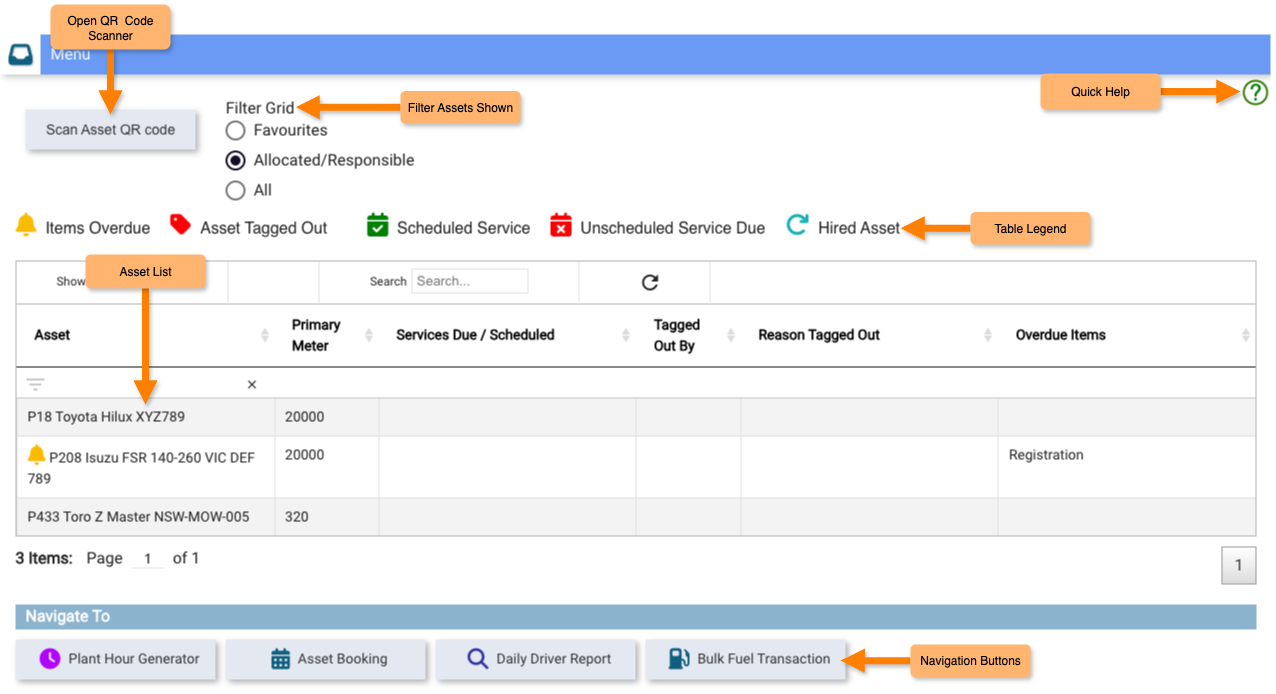
The Works Supervisor homepage is the Works Management Operator Menu, the same homepage as the Operator account type. From here you can see the assets relevant to you, act on those assets, and navigate to the other tools you use.
Viewing and Filtering Assets
Use the filter buttons at the top of the asset list to control which assets are shown:
- Favourites — only assets you have added to your favourites
- Allocated/Responsible — assets allocated to you or for which you are the responsible person
- All — all assets in the organisation
Two additional checkboxes let you narrow the results further:
- My Section — limits the list to assets belonging to your section
- My Department — limits the list to assets belonging to your department
These checkboxes work alongside whichever filter button is active, for example, selecting All and ticking My Department shows all assets in your department.
Icons in the asset column indicate the status of each asset at a glance:
| Icon | Meaning |
|---|---|
| Items Overdue | One or more aspects of the asset are overdue |
| Asset Tagged Out | The asset has an active Safety Tag against it |
| Daily Driver Inspection Required | The asset requires a Daily Driver pre-start before use |
| Scheduled Service | An upcoming service has been scheduled |
| Unscheduled Service Due | A service is due for generation but has not been scheduled |
| Hired Asset | The asset is currently on hire from an external supplier |
On narrow screens, select the + icon next to an asset to expand hidden columns.
Asset Actions
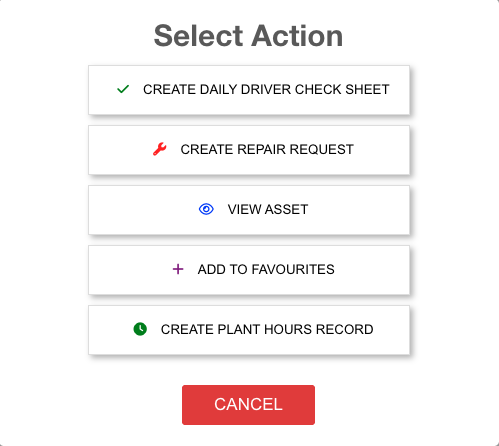
Select any asset from the list to open the action menu.
| Action | Description |
|---|---|
| Create Daily Driver Check Sheet | Opens a new Daily Driver pre-start checklist for the asset. Learn more about Completing a Daily Driver. |
| Create Repair Request | Opens a Repair Request for the asset, which can be actioned by the workshop. Learn more about Requests and Work Orders. |
| View Asset | Opens the asset record in read-only view. |
| Add to Favourites | Adds the asset to your favourites list for quicker access. |
| Create Plant Hours Record | Opens a new Plant Hours Record for the asset. Learn more about Recording Plant Hours. |
| Create Conversation | Starts a new conversation thread linked to the asset. Learn more about Conversations. |
Note: The actions available in this menu are configurable. Some options may not appear depending on your organisation's settings.
Navigation Buttons
The buttons at the top of the menu take you to other parts of the application:
| Button | Destination |
|---|---|
| Plant Hour Generator | Record plant hours for multiple assets across multiple account codes or jobs at once. Learn more about Recording Plant Hours. |
| Asset Booking | Book a pool vehicle from the booking calendar. Learn more about Booking an Asset. |
| Daily Driver Report | View which assets require pre-starts and whether they have been completed today. Learn more about Daily Driver Reporting. |
| Bulk Fuel Transaction | Record a fuel transaction not captured by a fuel card. Learn more about Recording Bulk Fuel Transactions. |
FLEET Booking
Works Supervisors have access to the FLEET Booking calendar via the Asset Booking button in the navigation menu. Depending on your organisation's configuration, Works Supervisor accounts may be granted additional booking permissions, such as the ability to create or manage bookings on behalf of other users, that are not available to standard Operator accounts.
Learn more about Booking an Asset.
Conversations
The Conversations panel shows all conversations you are involved in. Select New Conversation to start a new one.
Learn more about Conversations.
Works Information
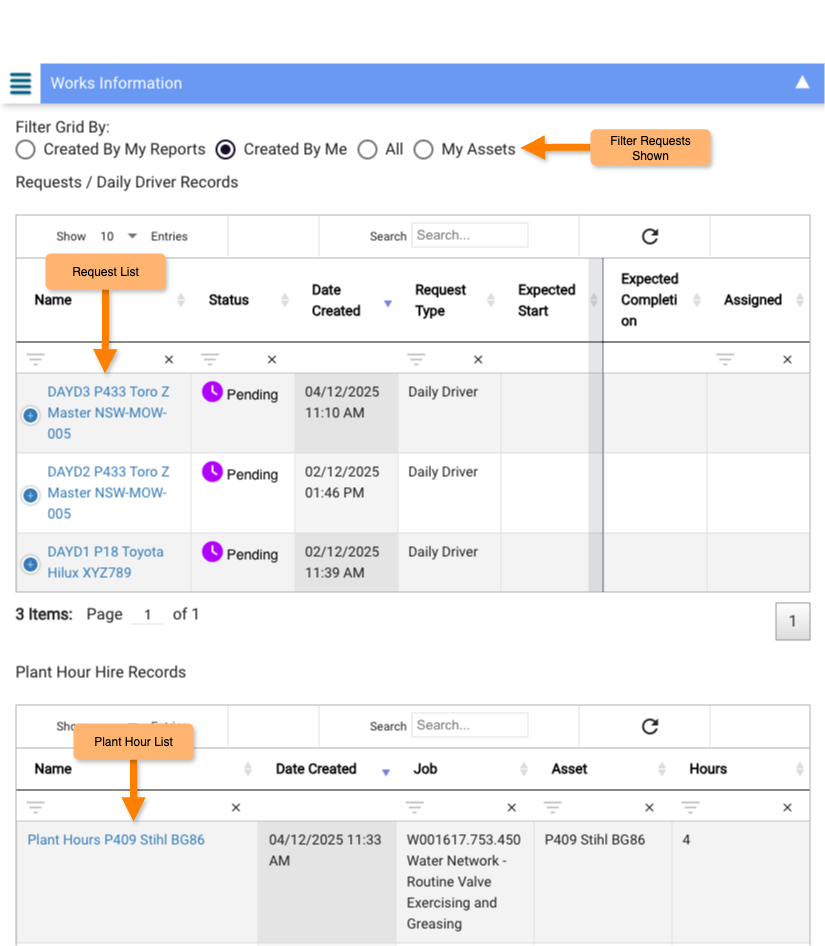
The Works Information panel shows the progress of Requests, Daily Driver faults, and Plant Hour Records associated with you. Use it to track the status of issues you have reported and maintenance being carried out on assets you use.
Further Reading
- Completing a Daily Driver
- Recording Plant Hours
- Booking an Asset
- Requests and Work Orders
- Conversations
Updated: June 2026 · Formbird FLEET 4.2.8