Hired Assets
Formbird FLEET supports the management of assets hired from external suppliers. Adding a hired asset to the system allows you to complete the same key actions available for owned assets, including:
- Daily Driver pre-start check sheets
- Recording plant hours
- Configuring the asset for FLEET Booking
- Logging repairs and servicing completed in-house
- Capturing expenses
An additional benefit is being able to track which assets are currently hired and for how long.
Adding a New Hired Asset
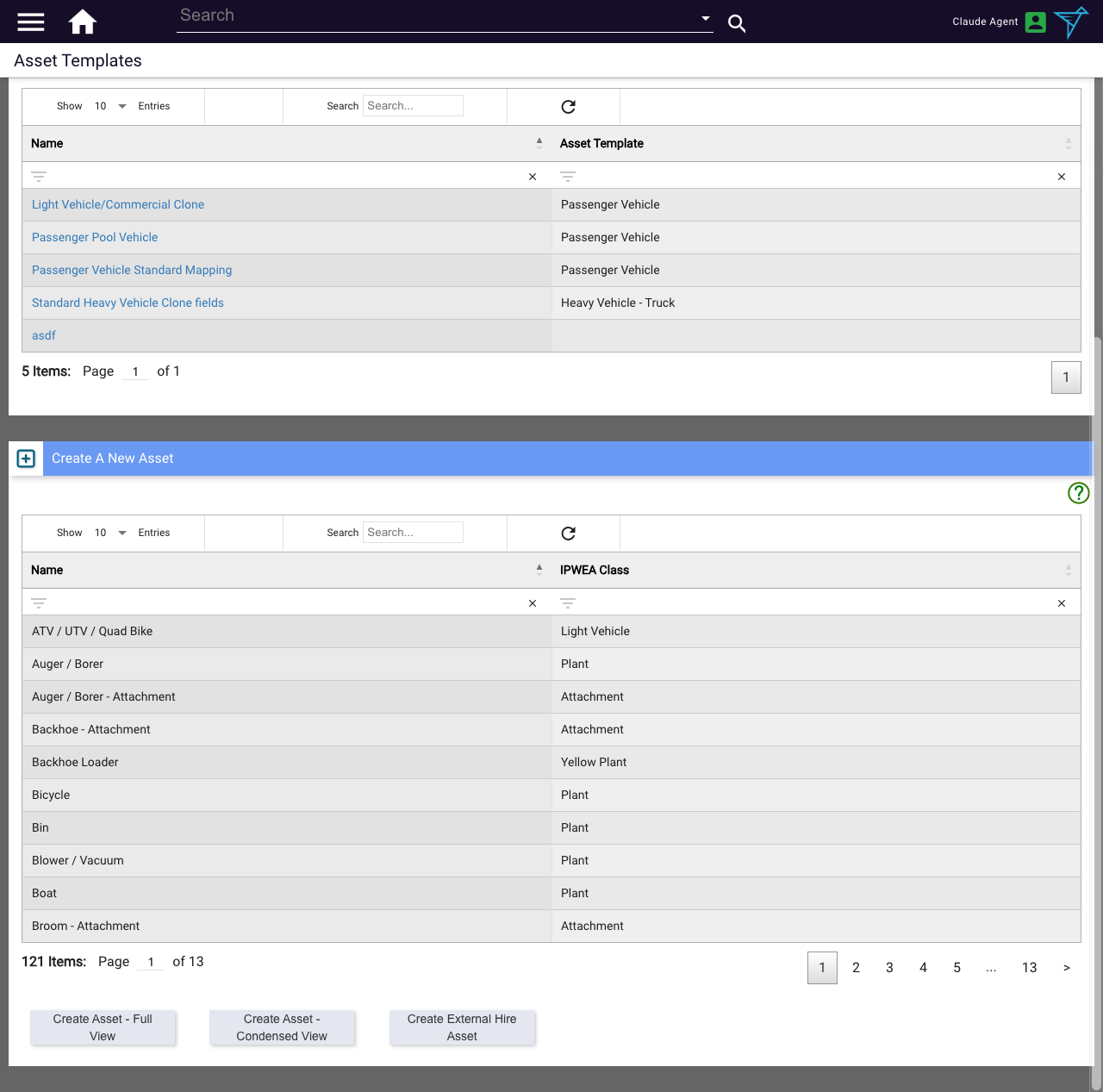
- From the System Administrator Menu, open the Configuration dropdown and select Asset Templates.
- Scroll to the Create A New Asset table.
- Use the column filter boxes to find the appropriate asset template for the type of hired asset (for example, type
passengerto find the Passenger Vehicle template). - Select the row for the template.
- Select Create External Hire Asset. This opens the template with a selection of key fields plus fields specific to hired assets.
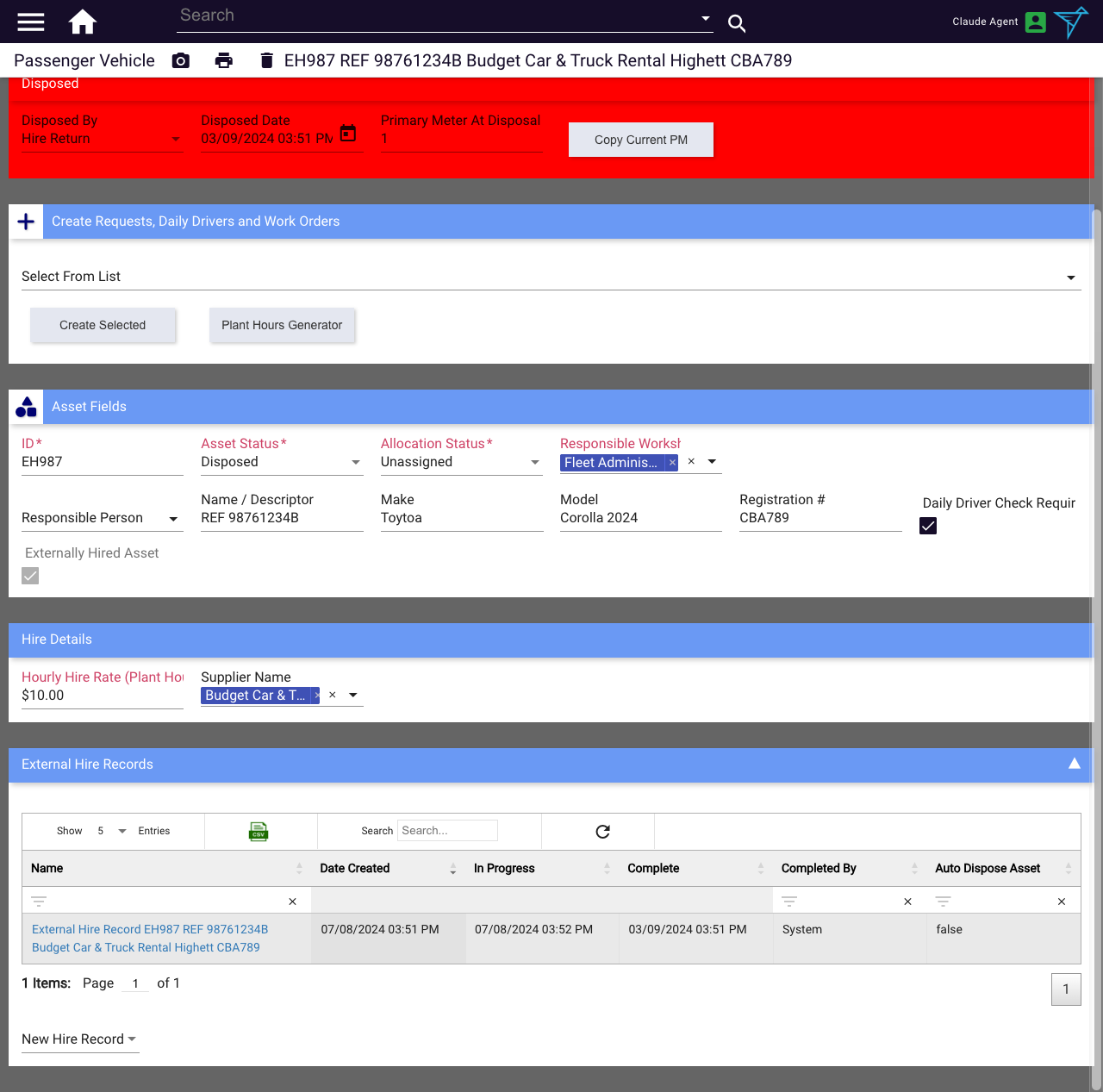
- Complete the mandatory and relevant fields. The asset's name is made up of the Asset ID, Name / Descriptor, Supplier Name, and Registration # values.
- Select the save tick in the top-left area of the page.
Once saved, the hired asset appears in the Externally Hired Asset List alongside regular assets.
Adding an External Hire Record
An External Hire Record is optional but recommended. It captures planning information, costs, and hire dates, and allows the same asset record to be reused if the same asset is hired again in future.
To create an External Hire Record on a hired asset:
- Navigate to the hired asset.
- In the External Hire Records panel, select the New Hire Record dropdown and choose New External Hire. The asset and supplier details populate automatically.
 3. Enter a Purchase Order No (optional).
4. Select an Expected Hire Completion date (optional). This date can trigger notifications and, if Auto Dispose is ticked, can automatically end the hire and set the asset to Disposed.
5. Tick Auto Dispose Asset if you want the system to automatically dispose of the asset when the hire ends (optional).
6. Enter an Expected Hire Cost.
7. Select a Job to associate this hire with a specific job code (optional).
8. Add any Notes or Attachments relating to the hire.
9. Change the Hire Status to In Progress when the asset has been picked up.
10. When the asset is returned, open the record again and change the Hire Status to Complete, and enter the final Hire Cost.
11. Select the save tick.
3. Enter a Purchase Order No (optional).
4. Select an Expected Hire Completion date (optional). This date can trigger notifications and, if Auto Dispose is ticked, can automatically end the hire and set the asset to Disposed.
5. Tick Auto Dispose Asset if you want the system to automatically dispose of the asset when the hire ends (optional).
6. Enter an Expected Hire Cost.
7. Select a Job to associate this hire with a specific job code (optional).
8. Add any Notes or Attachments relating to the hire.
9. Change the Hire Status to In Progress when the asset has been picked up.
10. When the asset is returned, open the record again and change the Hire Status to Complete, and enter the final Hire Cost.
11. Select the save tick.
Viewing Existing Hired Assets
- Navigate to the Asset List (from the Assets section of the Administrator homepage — see Asset List).
- Expand the Externally Hired Asset List panel. This table shows all assets created using the Create External Hire Asset button.
- Select the link in the Asset column to open a hired asset. This shows a condensed view of the asset.
- To access all details, select the Expanded View button near the top of the page.
Pre- and Post-Hire Inspections
A Pre/Post Hire Inspection Work Order documents the condition of a hired asset before it is dispatched and again when it is returned. Using inspection work orders creates a formal record of the asset's condition at both points, useful for identifying damage incurred during the hire and managing supplier accountability.
Inspections are created and managed in the same way as other Work Orders.
- From the hired asset's record or its linked Request, create a new Work Order.
- Select Pre/Post Hire Inspection as the Work Order type.
- Complete the inspection details, recording condition, any faults observed, and the assigned inspector.
- Set the Work Order to Complete once the inspection is done.
Create one inspection Work Order before the asset is collected and a second when it is returned. Having both on record makes any condition differences visible in the asset's history.
See Completing a Work Order for the general Work Order completion process.
Disposing of a Hired Asset
Once a hired asset has been returned to the supplier, update it in Formbird FLEET to reflect this. Setting the asset to Disposed removes it from active use and prevents it from appearing in bookings, pre-starts, and other areas of the application.
- Navigate to the hired asset.
- If the asset has an External Hire Record:
- Open the record by selecting its row in the table.
- Change the Hire Status to Complete and enter a Complete date. A prompt about disposal may appear on save.
- Enter the final Hire Cost.
- On the asset itself, change the Status to Disposed.
- In the Disposed panel, confirm or update the Disposed Date and select a Disposed By method, typically Hire Return in this case.
- Save the changes.
Note: If the same asset is hired again in future, simply set the Status back to Active to make it available again, and optionally create a new External Hire Record. This keeps all records for that hired asset together in one place.
Updated: August 2026 · Formbird FLEET 4.2.8