Booking an Asset
The Asset Booking page lets you book shared pool vehicles from a calendar that shows availability across your organisation's fleet. It is accessible from the homepage for all account types.
The assets available for you to book are determined by the vehicle pools you belong to. For setup and configuration, see Pool Booking Configuration. For KeyWatcher key cabinet instructions, see Using KeyWatcher.
Note: The booking system is highly configurable. Some features described in this article may not be available in your organisation's environment, and some fields may be required or hidden depending on your configuration.
The Booking Calendar
The booking calendar shows all assets available to you, grouped by location. Assets are listed on the left; the timeline runs across the top, with each column representing 30 minutes. Scroll right to navigate further into the day.
Filtering the Calendar
By default, all assets you have access to are shown. Use the controls at the top of the calendar to narrow the list.
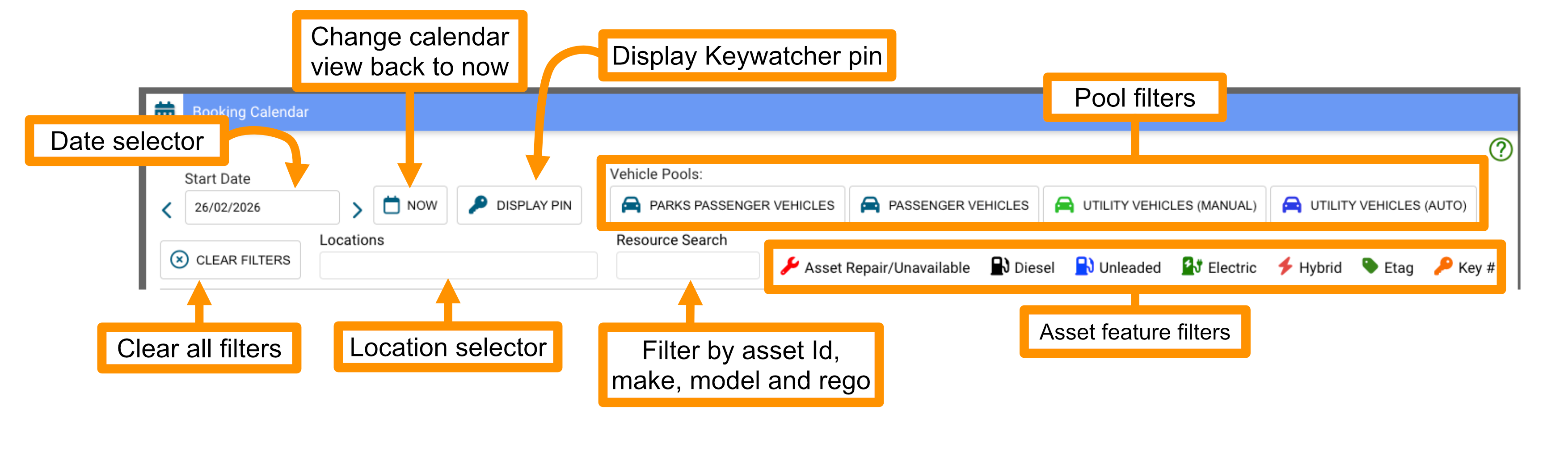
- Enter a date in Start Date to jump the calendar to that date. Select Now to return to the current time.
- Select one or more Vehicle Pool filters to show only assets from those pools.
- Select an asset feature filter (fuel type, E-Tag, KeyWatcher key, repair/unavailability) to show only assets with that feature.
- Choose one or more Locations from the dropdown to limit which locations are shown.
- Type in Resource Search to find assets by ID, make, model, or registration.
- Select Clear Filters to remove all active filters.
Reading the Calendar
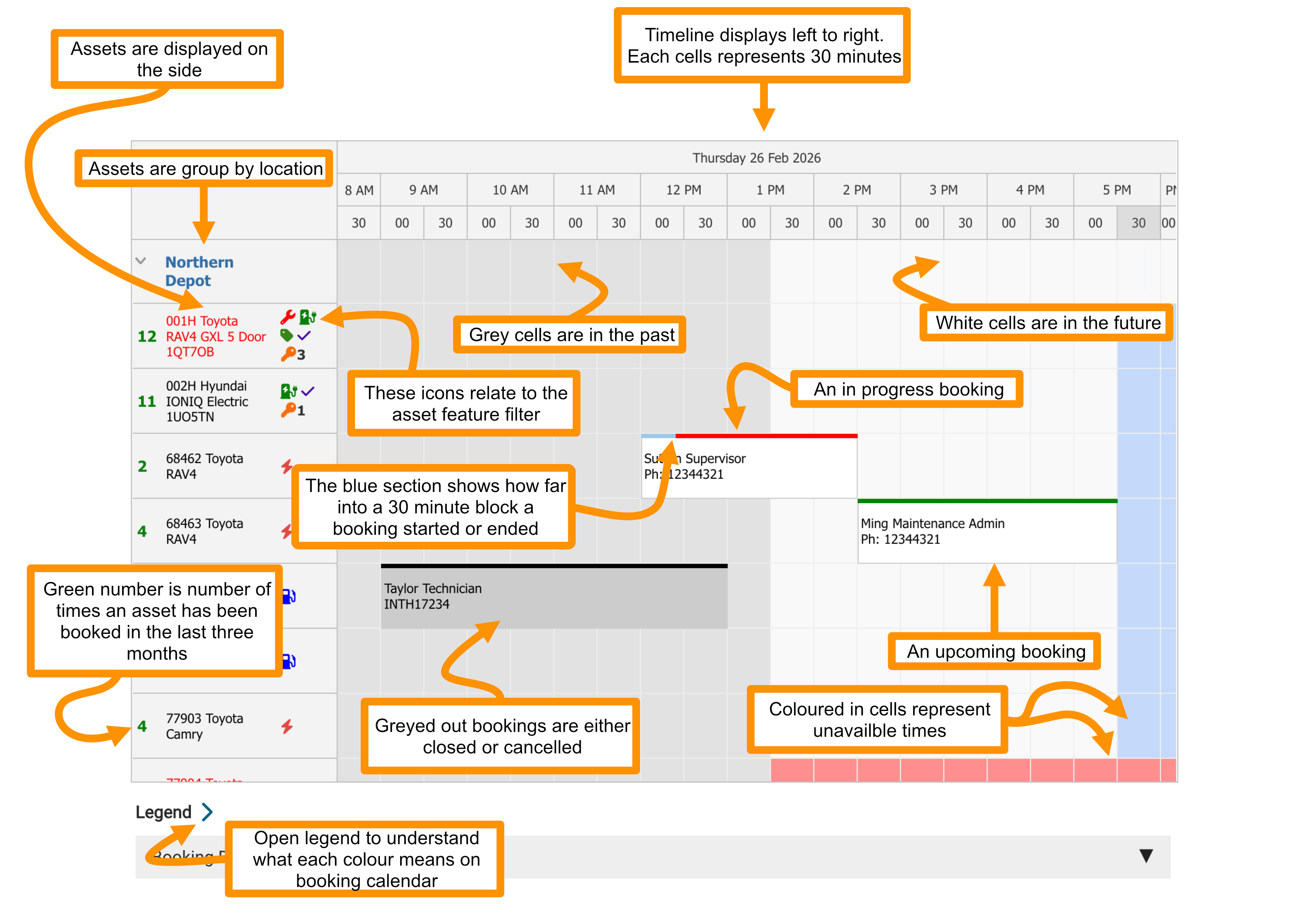
- White cells — the asset is available during that time.
- Grey cells — times in the past, or times outside the asset's available hire hours.
- Coloured cells — the asset is blocked out for a specific reason (maintenance, safety tag, urgent fault, etc.). Select Legend to see what each colour means.
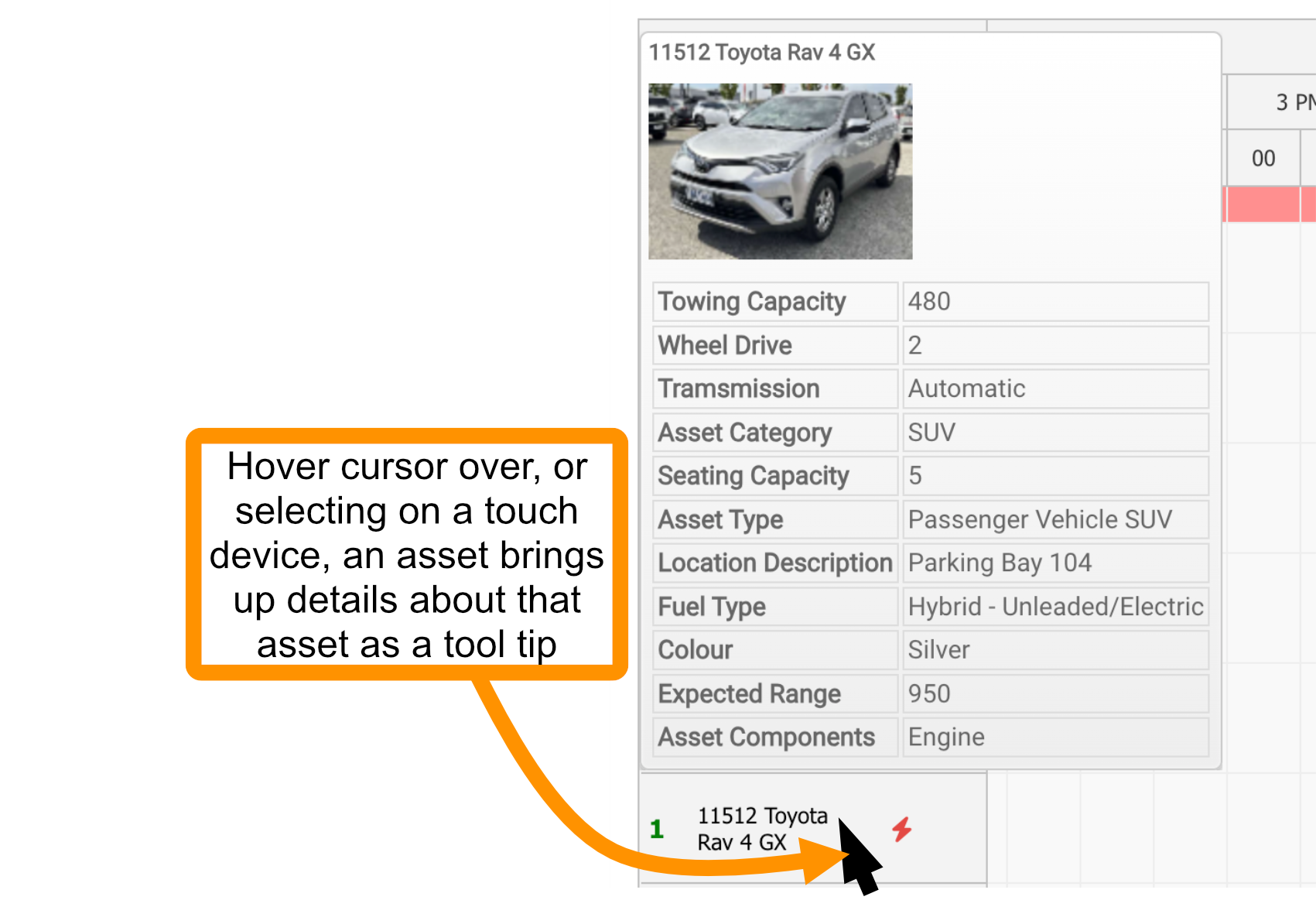
- Each asset row shows the asset's name (ID, make, model, and registration), feature icons (fuel type, E-Tag, KeyWatcher), and the number of recent bookings.
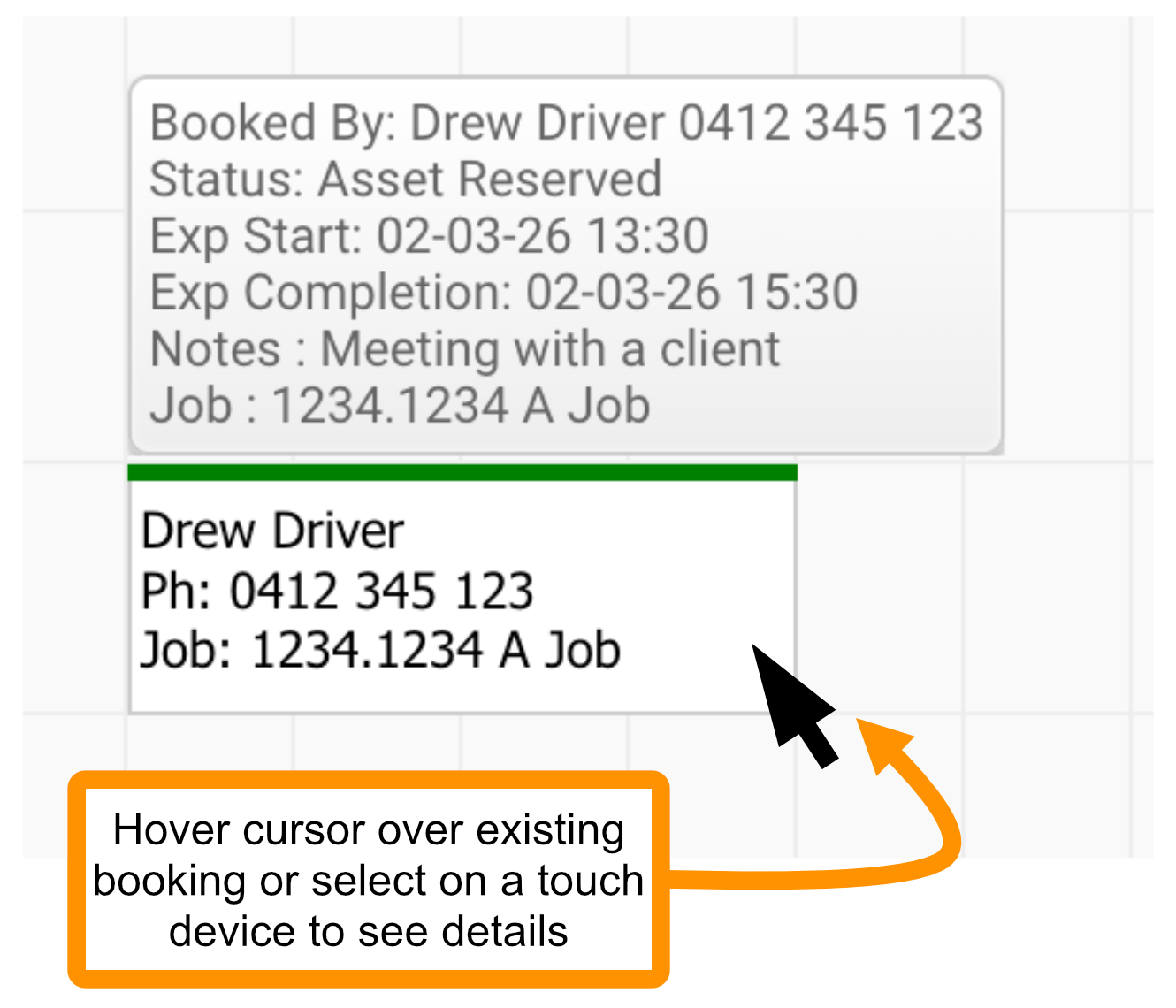
- Bookings on the calendar show the name and phone number of the person the booking is for, with a status bar at the top.
- Hover over an asset name or booking to see more detail. On a touch device, select it in the blank area of the row.
- An asset name shown in red means there is an open maintenance Request for that asset that has not been closed.
- Locations can be collapsed to hide all assets in that group.
Creating a Booking
- Navigate to your desired booking date using Start Date or by scrolling the calendar.
- Apply any filters to find the right asset.
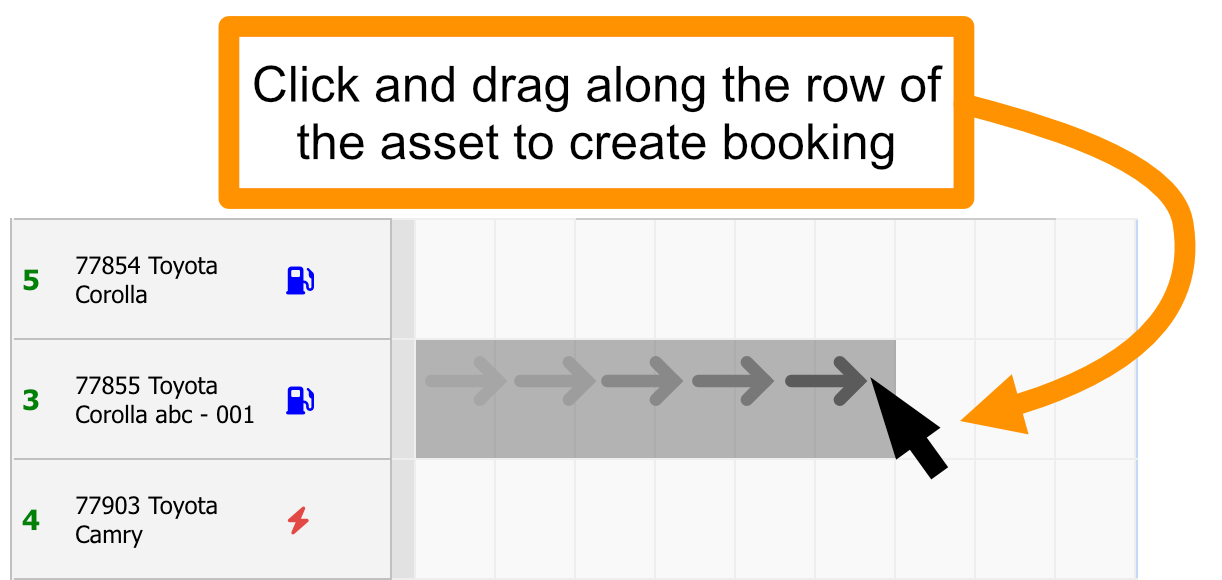
- Select and drag across the empty cells in the asset's row for the length of the booking. Release to open the Booking Details panel.
Tip: Selecting a single empty cell also opens Booking Details. You can then adjust the start and end times manually.
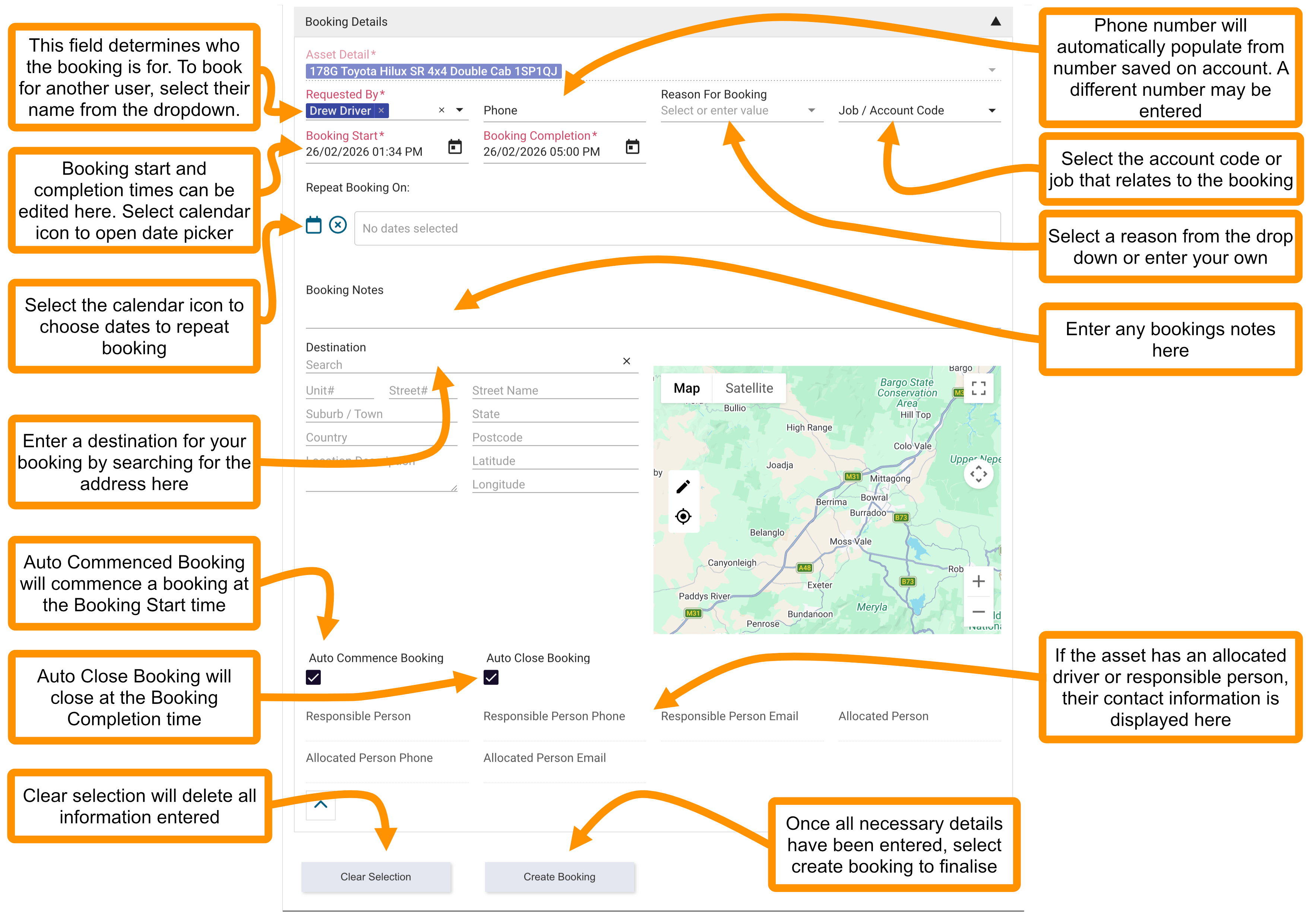
- Fill in the booking details as needed:
- To book on behalf of someone else, select the × next to the name in Requested By and choose a different user.
- The Phone field fills automatically from the user's account. Edit it if needed.
- Select a Reason for Booking from the dropdown, or type one if no suitable option exists.
- Select a Job / Account Code to charge the booking to.
- Edit Booking Start and Booking Completion directly or use the calendar icon to open the date picker.
- Enter any Booking Notes.
- To set a destination, search for it or select the pencil icon to pick a location on the map.
- Tick Auto Commence Booking to automatically start the booking at the Booking Start time.
- Tick Auto Close Booking to automatically close the booking at the Booking Completion time.
- Select Create Booking to save. Select Clear Selection to discard without saving.
Repeat Bookings
If repeat bookings are enabled for your account, a Repeat Booking On section appears in the Booking Details panel. For commuter use bookings, the repeat booking tool appears automatically when Commuter Use is selected as the booking reason. See Commuter Use Bookings.
- Confirm the Booking Start and Booking Completion times are correct.
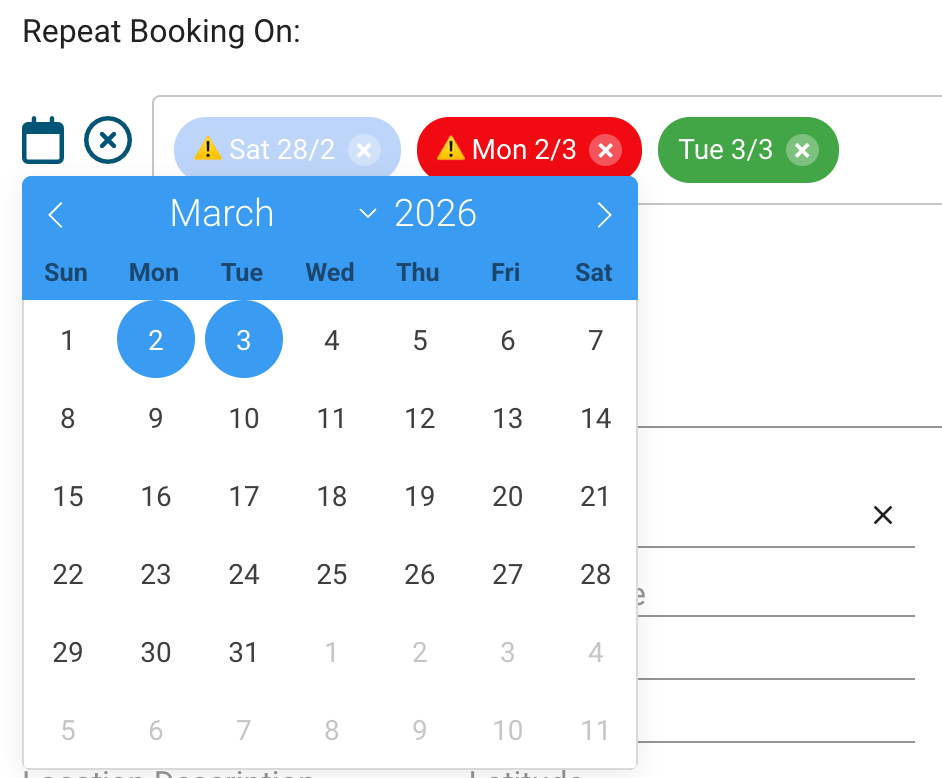
- Select the calendar icon under Repeat Booking On and choose the dates to repeat the booking.
- Green — the asset is available on that date.
- Light blue — the date overlaps with the asset's unavailability.
- Red — the date conflicts with an existing booking.
- Greyed-out dates overlap with your current selection and cannot be chosen.
- Select Create Bookings. A confirmation shows the outcome for each date.
Updating a Booking
- Select the booking on the calendar to open the Booking Details panel.
- Adjust the time by dragging the booking to a new position, or drag its left or right edge to extend or shorten it. On a touch device, use the Booking Start and Booking Completion fields instead.
- Update any other fields as needed.
- Select Update Booking.
Note: If you update a booking that was created by someone else, they will receive an email showing what changed.
Bookings can also be accessed from the Bookings panel below the calendar. Select the booking link in the table to open the booking document directly.
Cancelling a Booking
- Select the booking on the calendar to open the Booking Details panel.
- Select Cancel Booking.
Commencing and Closing a Booking
If Auto Commence and Auto Close are set on the booking, no action is needed. The status updates automatically at the scheduled times.
If not, select the booking on the calendar to open the Booking Details panel and use Commence Booking when you pick up the asset and Close Booking when you return it.
Creating a Daily Driver from a Booking
If your organisation requires a Daily Driver pre-start before using an asset, you can create one directly from your booking.
- Select the booking on the calendar to open the Booking Details panel.
- Select Create Daily Driver.
- Complete the checklist and save.
My Booking Timeline
Select My Booking Timeline to see all your upcoming bookings in a list. Select View in Scheduler on any booking to jump to it in the calendar. Use the date picker in the top right corner to move the timeline to a specific date.
Bookings Panel
The Bookings panel below the calendar displays bookings in a table. Use it to search for and filter bookings, particularly useful for finding bookings outside the visible calendar range.
Date filter: by default shows bookings with an expected start between yesterday and today. Adjust Filter Exp. Start > and Filter Exp. Start < to change the range. Clear the date filters to see all bookings regardless of date.
Show filter:
| Option | What it shows |
|---|---|
| My Bookings | Only your bookings (default) |
| Commuter / Private Use | Automatically generated bookings for allocated drivers |
| All | All bookings |
| Active Bookings Past Expected Completion | Commenced bookings that have gone past their expected end time |
Status filter: controls which booking statuses appear in the table. Defaults to Asset Reserved (upcoming) and Hire Commenced (active).
Note: Bookings cannot be created from the Bookings panel. Use the calendar.
Administrators and pool managers can use the Cancel Selected, Close Selected, and Delete Selected bulk action buttons to update multiple bookings at once.
Booking Notifications
To subscribe to booking confirmation and update emails from the booking page, scroll to the Booking Notifications panel and select Create Notification. You will receive an email with a calendar event when a booking is created or updated for you.
Once subscribed, you also receive a reminder email approximately 15 minutes before a booking you requested is due to start, giving you advance notice to collect the asset on time. This is sent once per booking.
To unsubscribe or change the notification email address, select your name in the notification table. Learn more about Notifications.
Updated: July 2026 · Formbird FLEET 4.2.8